Why the Best WordPress Image Compression Plugin is... No Plugin

If you run a WordPress site, you have probably been told you need an image optimization plugin. There are dozens of them—Smush, Imagify, EWWW, ShortPixel. They are popular for a reason: they are convenient.
But they come with baggage.
Most of these plugins operate on a "freemium" model with strict limits (e.g., "optimize 50 images a month for free"). Once you hit that cap, you have to pay. Furthermore, installing heavy plugins adds bloat to your site's database and can slow down your admin dashboard while the plugin chews through your uploads in the background.
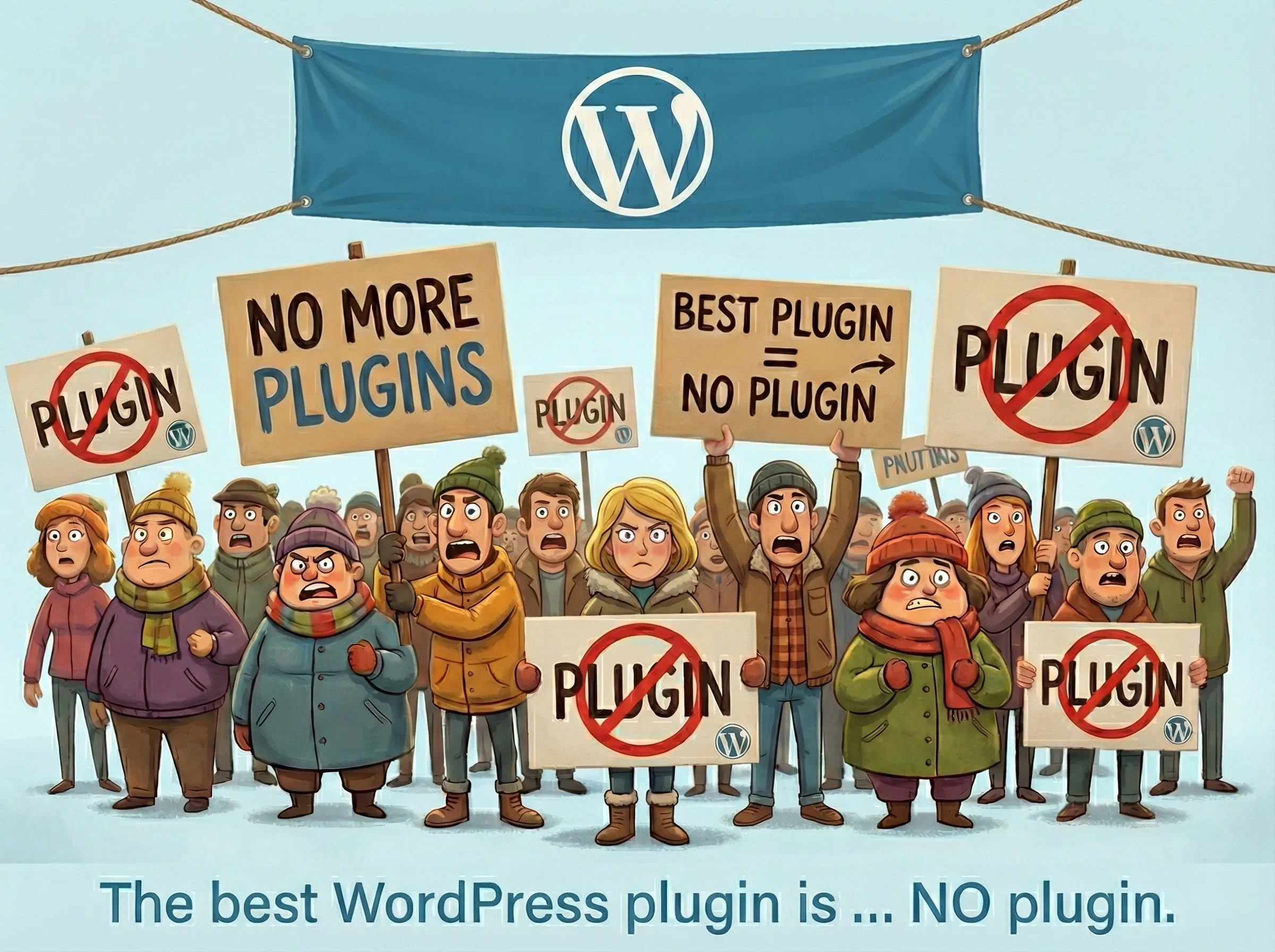
The "Pre-Optimization" Strategy
The cleanest way to handle images in WordPress is to optimize them before they ever touch your server. This keeps your media library clean, saves you storage space on your hosting plan, and keeps your database fast.
It sounds like more work, but it's actually safer. You aren't relying on a plugin to potentially break your site or conflict with your theme.
How to Do It (For Free)
Instead of installing a plugin, just bookmark a compressor tool.
- Curate your content. Pick the images for your blog post or page.
- Run them through LighterImage. Drag and drop your batch. It takes seconds.
- Upload to WordPress.
Bonus: The WebP Advantage
Modern WordPress versions (5.8+) support WebP images natively. WebP is the modern format that Google loves—it's smaller and faster than JPEG.
When you use LighterImage, we automatically generate a WebP version of your file alongside the compressed original. This gives you a choice:
- The Standard Route: Upload the compressed JPG/PNG. It works everywhere, it's safe, and it's small.
- The Performance Route: Upload the WebP version directly to your media library for the absolute fastest load times possible.
By handling this outside of WordPress, you get total control over the quality and format without paying a monthly subscription fee for a plugin.
Frequently Asked Questions
Do I need a WordPress image compression plugin?
No. Pre-optimizing images before upload is cleaner and avoids plugin bloat. Compression plugins add database overhead, may conflict with themes, and often have paid limits. Compressing before upload is free and keeps your site fast.
Does WordPress support WebP images?
Yes, WordPress 5.8 and later supports WebP natively. You can upload WebP images directly to your media library for the smallest file sizes and fastest loading times.
What is the best image format for WordPress?
WebP offers the best performance for WordPress. For maximum compatibility, use compressed JPG/PNG. Either way, compress before uploading to avoid relying on plugins.
No signup required. Drop your images and download compressed versions instantly.